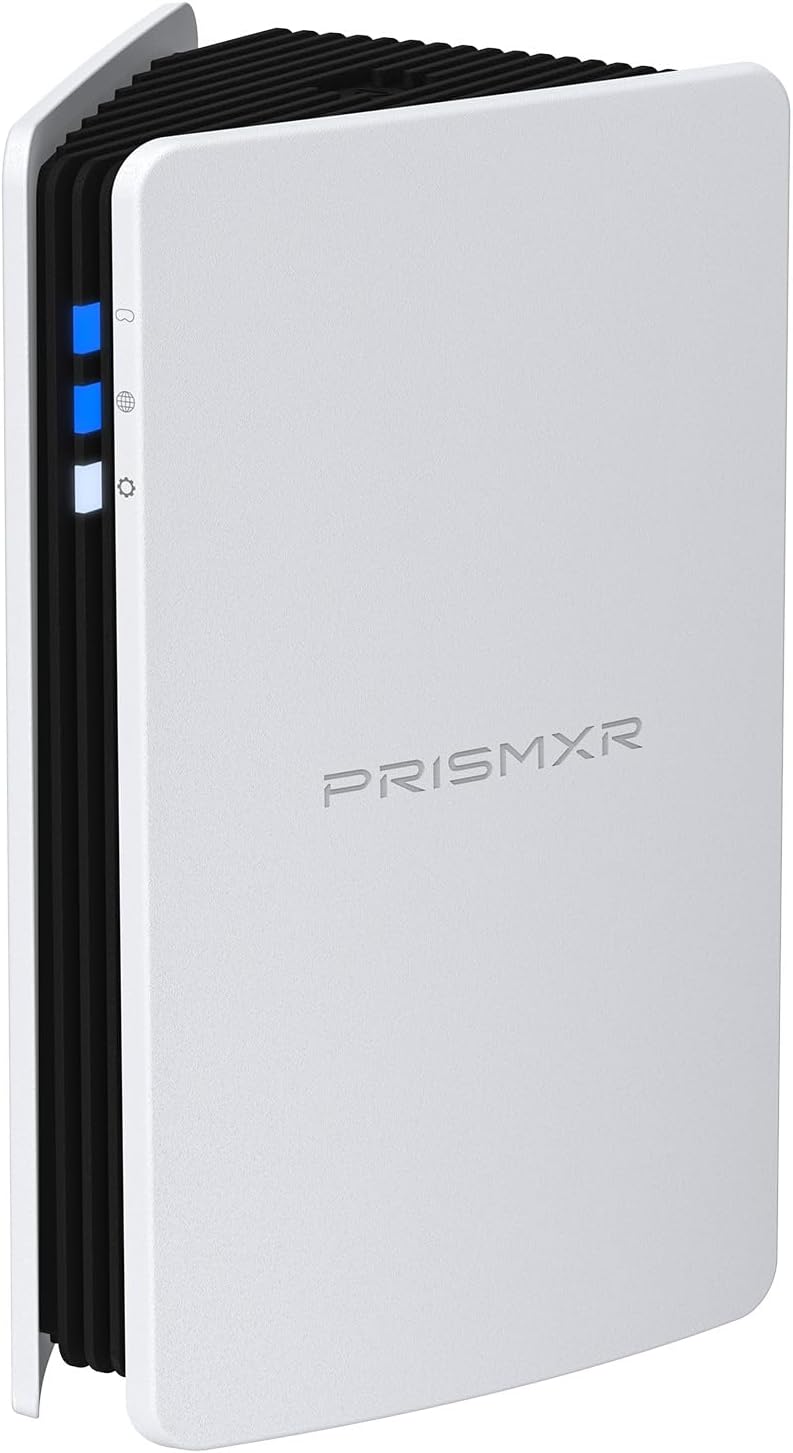
Wi-Fi Cameras Keep Disconnecting: Dead Zone Fixes That Work
Wi-Fi security cameras are one of the first devices to expose weak or unstable Wi-Fi. They reconnect slowly, drop offline without warning, and often fail at the worst possible moment.
This leads many people to blame the camera brand — when in reality, the problem is almost always Wi-Fi dead zones, interference, or poor backhaul.
This guide explains why Wi-Fi cameras struggle, how to diagnose the real issue, and which fixes actually keep cameras online long-term.
Why Wi-Fi Cameras Are So Sensitive
Unlike phones or laptops, Wi-Fi cameras:
- Stay connected 24/7
- Don’t roam intelligently
- Often use weaker antennas
- Transmit constantly
This makes them far less tolerant of weak signal or interference.
A Wi-Fi camera that “works sometimes” is almost always sitting at the edge of coverage.
Common Places Cameras Fail
Wi-Fi cameras are often installed in the worst possible spots for signal.
Typical problem areas:
- Exterior walls
- Garages
- Basements
- Near metal siding
- Far corners of the house
These locations amplify dead zones that phones might tolerate but cameras cannot.
Step 1: Confirm It’s a Wi-Fi Problem
Before replacing the camera, confirm the network is the issue.
Quick checks:
- Bring the camera temporarily closer to the router
- Test with a mobile hotspot
- Check if multiple cameras fail in similar areas
If the camera works fine closer to Wi-Fi, the problem is coverage — not hardware.
Step 2: Understand Camera Band Limitations
Many Wi-Fi cameras:
- Use 2.4 GHz only
- Lack modern roaming features
- Struggle in congested environments
This means:
- Strong 5 GHz coverage doesn’t help them
- 2.4 GHz congestion hurts badly
You must design coverage specifically for cameras.
Step 3: Improve Coverage Where Cameras Live
The most effective fix is to bring Wi-Fi closer to the camera.
Best options:
- Add a mesh node near the camera
- Install a wired access point in the area
- Move the router closer if possible
Avoid trying to “boost” signal from far away.
Why this works
Shorter distance = fewer retries = stable stream.
Cameras need consistency more than speed.
Step 4: Wired Backhaul Is a Huge Win
If you add a mesh node or access point:
- Use Ethernet backhaul whenever possible
- Avoid wireless hops through walls
Wired backhaul:
- Stabilizes the upstream connection
- Prevents camera dropouts under load
- Improves responsiveness
Even one wired node dramatically improves camera reliability.
Step 5: Avoid Extenders for Cameras
Wi-Fi extenders cause problems for cameras.
Issues include:
- Increased latency
- Reduced bandwidth
- Unpredictable reconnections
Cameras need clean, stable paths — not repeated signals.
Extenders often make disconnections worse.



Step 6: Watch for Interference Near Cameras
Cameras are often mounted near interference sources.
Watch for:
- Metal siding
- Garage doors
- Electrical panels
- Motors and appliances
Even moving a camera a foot or two can improve reliability.
Step 7: Power Problems Look Like Wi-Fi Problems
Unstable power causes cameras to disconnect.
Check for:
- Weak power adapters
- Long or cheap USB cables
- Shared outlets with heavy loads
A camera rebooting due to power looks exactly like a Wi-Fi dropout.
Outdoor Cameras: Special Considerations
Outdoor cameras face extra challenges:
- Distance
- Weather
- Exterior walls
For outdoor installs:
- Use mesh nodes or access points inside the nearest wall
- Avoid mounting cameras directly on metal
- Keep cable runs short and protected
Outdoor-rated access points are worth considering for large properties.
What Actually Helps (In Order)
To keep Wi-Fi cameras online:
- Confirm coverage at the camera location
- Add Wi-Fi closer to the camera
- Use wired backhaul if possible
- Avoid extenders
- Check power stability
- Fine-tune camera placement
Final Thoughts
Wi-Fi cameras don’t need “strong” Wi-Fi — they need stable Wi-Fi.
Once dead zones are eliminated and backhaul is solid, cameras stay connected quietly in the background, exactly as they should. Most camera “problems” disappear once the network is fixed.
Fix the network first. The cameras will follow.
Related Products