
Find the Best Wi-Fi Channel (2.4 vs 5 vs 6 GHz Explained Simply)
Many Wi-Fi problems are blamed on weak routers or bad coverage when the real issue is much simpler: your network is fighting with everyone else’s.
Wi-Fi channels are shared airspace. If too many devices try to talk at once, performance collapses — even if your signal looks strong.
This guide explains how Wi-Fi channels work across 2.4 GHz, 5 GHz, and 6 GHz, why “Auto” often fails, and how to choose the cleanest channel for real-world performance.
Why Channels Matter More Than You Think
Wi-Fi doesn’t fail quietly. It fails through:
- Retries
- Collisions
- Delays
- Inconsistent speeds
These problems don’t show up as weak signal. They show up as:
- Slow page loads
- Buffering
- Lag spikes
- Random disconnects
Channel congestion causes all of this.
Understanding the Three Wi-Fi Bands
Most modern routers usually support two frequency bands, with newer devices including a third frequency band. Each behaves very differently.
2.4 GHz: Long Range, Heavy Congestion
2.4 GHz travels far and penetrates walls well — but that’s also its weakness.
Problems with 2.4 GHz:
- Very few usable channels
- Overlap between channels
- Interference from Bluetooth, microwaves, and appliances
In most neighborhoods, 2.4 GHz is crowded beyond repair.
Use 2.4 GHz only for:
- Smart home devices
- Low-bandwidth devices
- Long-range but low-speed needs
Avoid it for anything performance-critical.
5 GHz: The Sweet Spot for Most Homes
5 GHz offers:
- Higher speeds
- More available channels
- Less interference
- Shorter range (which is often good)
Most phones, laptops, and TVs perform best on 5 GHz.
However, not all 5 GHz channels are equal.
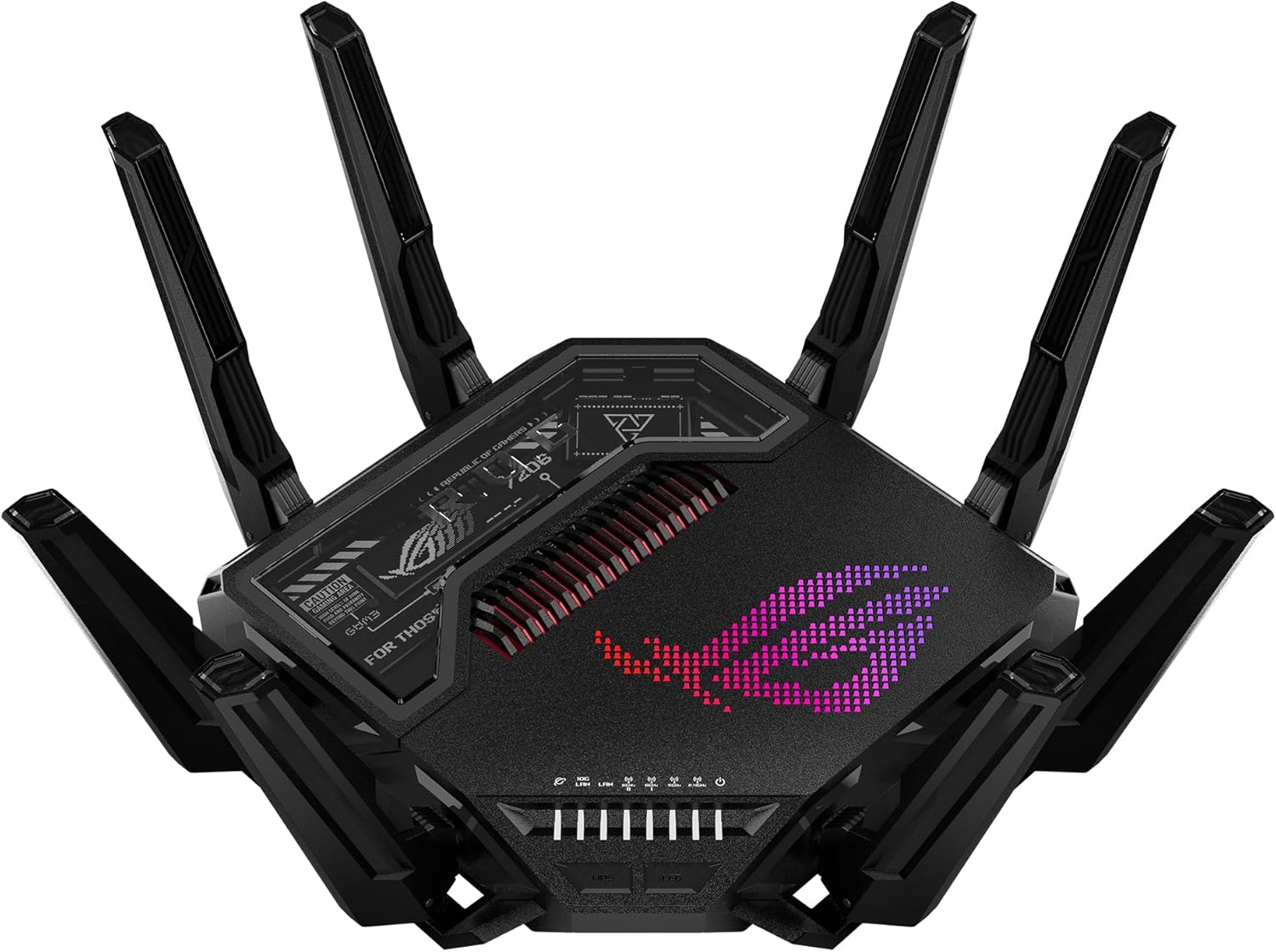
6 GHz: Clean, Fast, and Underused (For Now)
6 GHz is the newest band and has huge advantages:
- Massive channel availability
- Almost zero neighborhood congestion
- Very high throughput
The trade-offs:
- Shorter range
- Requires compatible devices
- Requires a router that supports it
For devices that support it, 6 GHz is often flawless.



Why “Auto Channel” Often Fails
Routers set to automatic channel selection usually choose channels:
- Only at boot
- Based on incomplete scans
- Without accounting for time-of-day congestion
This means your router might lock onto a bad channel and stay there.
Auto works best in low-density areas. In apartments or suburbs, manual selection often performs better.
How to Identify Congestion
You don’t need advanced tools to diagnose channel problems.
Simple signs include:
- Slower speeds at night
- Speed drops when neighbors are home
- Good performance near router, poor elsewhere
- Devices disconnecting without moving
These point strongly toward channel contention.
Using Wi-Fi Analyzer Tools
Wi-Fi analyzer apps show:
- Nearby networks
- Channels in use
- Signal overlap
You don’t need perfect data — you’re looking for patterns.


What to look for
- Channels with fewer overlapping networks
- Strong signals crowding certain channels
- Cleaner segments of the spectrum
Even a rough view is better than guessing.
Channel Selection by Band
Here’s how to choose channels practically.
2.4 GHz Channels
Only use:
- Channel 1
- Channel 6
- Channel 11
All other channels overlap and cause interference.
Pick the one with the least activity.
5 GHz Channels
5 GHz offers many more options.
Guidelines:
- Avoid the most common low-numbered channels if crowded
- DFS channels are often cleaner (if your router supports them)
- Test stability after switching
Some routers require a restart when changing channels.
6 GHz Channels
If available:
- Leave it on wide channels
- Enjoy the lack of competition
6 GHz usually doesn’t need manual tuning yet.
Channel Width: The Hidden Setting
Channel width determines how much spectrum your Wi-Fi uses.
Wider channels:
- Higher potential speeds
- More interference risk
Narrower channels:
- More stable
- Better in congested environments
Practical advice
- Use narrower widths in dense areas
- Use wider widths if you’re isolated
Auto width often overshoots.
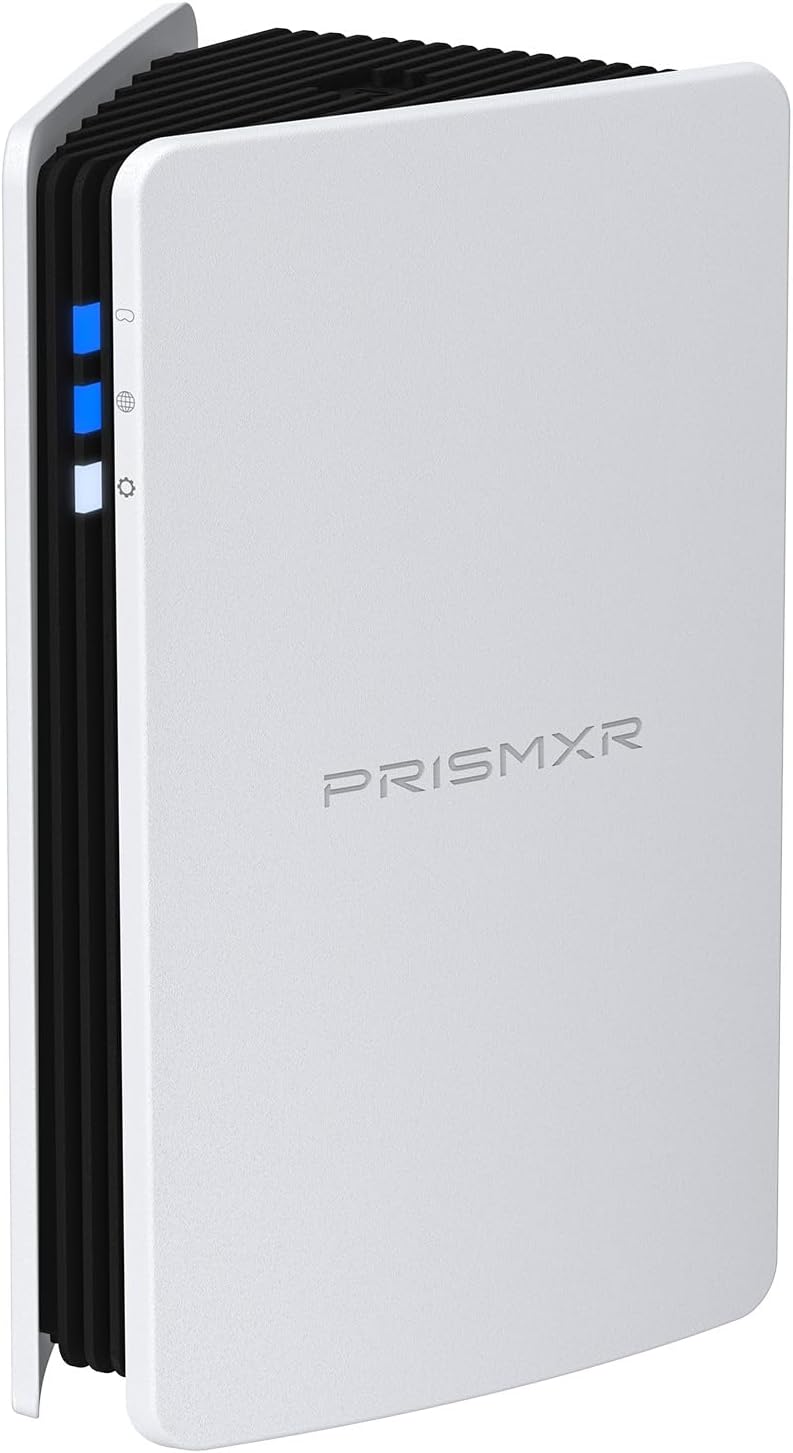
When New Hardware Actually Helps
If your router:
- Lacks DFS support
- Has poor channel controls
- Can’t separate bands properly
Then upgrading hardware can make channel optimization possible.
Routers with better radios and firmware handle congestion far better than entry-level units.



What Actually Helps (In Order)
To fix channel-related Wi-Fi problems:
- Move important devices to 5 GHz or 6 GHz
- Manually select cleaner channels
- Adjust channel width appropriately
- Reduce reliance on 2.4 GHz
- Upgrade hardware only if necessary
Final Thoughts
Wi-Fi performance lives and dies in shared airspace.
You don’t need stronger signal — you need cleaner air. Once channels are chosen correctly, many “mystery” Wi-Fi problems disappear overnight.
Before buying new gear, tune the channels you already have. It’s one of the highest-impact fixes you can make.
Related Products


